
From the 2022 to 2024 archive. Written before the current platform, so some product names and details have changed. How the platform works today.
It's the US Election - do you know where your political ads are streaming? Here's how to meet your FTC obligations.
At the time of writing there are only 100 days left to the 2024 US elections. It will be the most streamed election in history and the biggest spend of
At the time of writing there are only 100 days left to the 2024 US elections.
It will be the most streamed election in history and the biggest spend of political advertising funds in the streaming market ever.
Broadcasters and streamers providing content to a US audience are obligated by the FTC to:
- Provide equal opportunities to all legally qualified candidates;
- Prevent unfair advantages by only charging legally qualified candidates the “Lowest Unit Charges” and “Comparable Rates”;
- Not censor or reject political ads paid for and sponsored by legally qualified candidates;
- Keep and make available upon request records pertaining to the above that contain:
- Information about ad purchases;
- Issue advertisers;
- Time given to the candidates;
- Geographical details of where ads have been displayed.
In a nut shell streamers and broadcasters need to be able to show at sufficient level, upon request, where, when and to who political ads have been shown.
It could be quite a burden but with Watching That’s Inspect module is super simple:
Step #1: Ensure you are providing the right data to your Watching That account.
As a minimum you should be sending:
Ad Name
Where the ad came from (one of these will do - advertiser, agency, DSP name, reseller)
Ad ID
State/DMA the ad ran in
Timestamp
But you should also check with your legal/compliance team for any specific / unique requirements to your business.
Contact your Watching That Customer Success Manager to confirm the above or if you need more data points added.
Step #2: Identify how you are tagging political ad spend in your ad server so they can be grouped.
This might be as a label in your Campaign/Order name or in your Deal Names
For example:
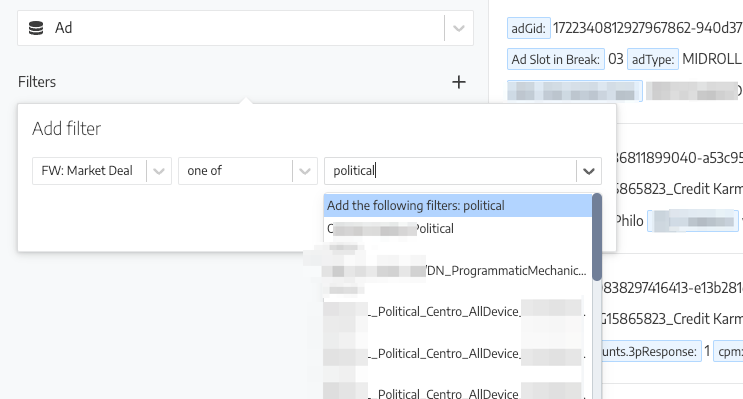
Within Watching That you have the option of creating a Custom Dimension that can group all of these matching entities into one convenient set that you can use across the platform.
Step #3 Jump into Inspect using filters to zero in on specific activities and take comfort in knowing you are meeting your FTC obligations!
Now you can use Inspect as required to answer any inbound questions around your political advertising outputs.
Watching That’s Inspect Module with an Active Filter on a specific Political Deal Id
Screenshot of Watching That Inspect showing a complete record for an individual political ad including Device Type, DMA, Freewheel Deal, Series, Content Type and more
Typically you have a rolling 7 day window in Inspect but that can be increased to 30 days and other Reports can be crafted to give you much longer look back.
Job’s done!
Please contact your CSM to find out more.
More on validation monitors
Rules checked against the live ad-server set-up, and what they catch before a campaign under-delivers.